Applications Listing Overview
The Applications page in your Admission System module provides a comprehensive view of all the student applications. This page is designed to help you manage and track applications efficiently. Here’s a detailed overview of its features and functionalities
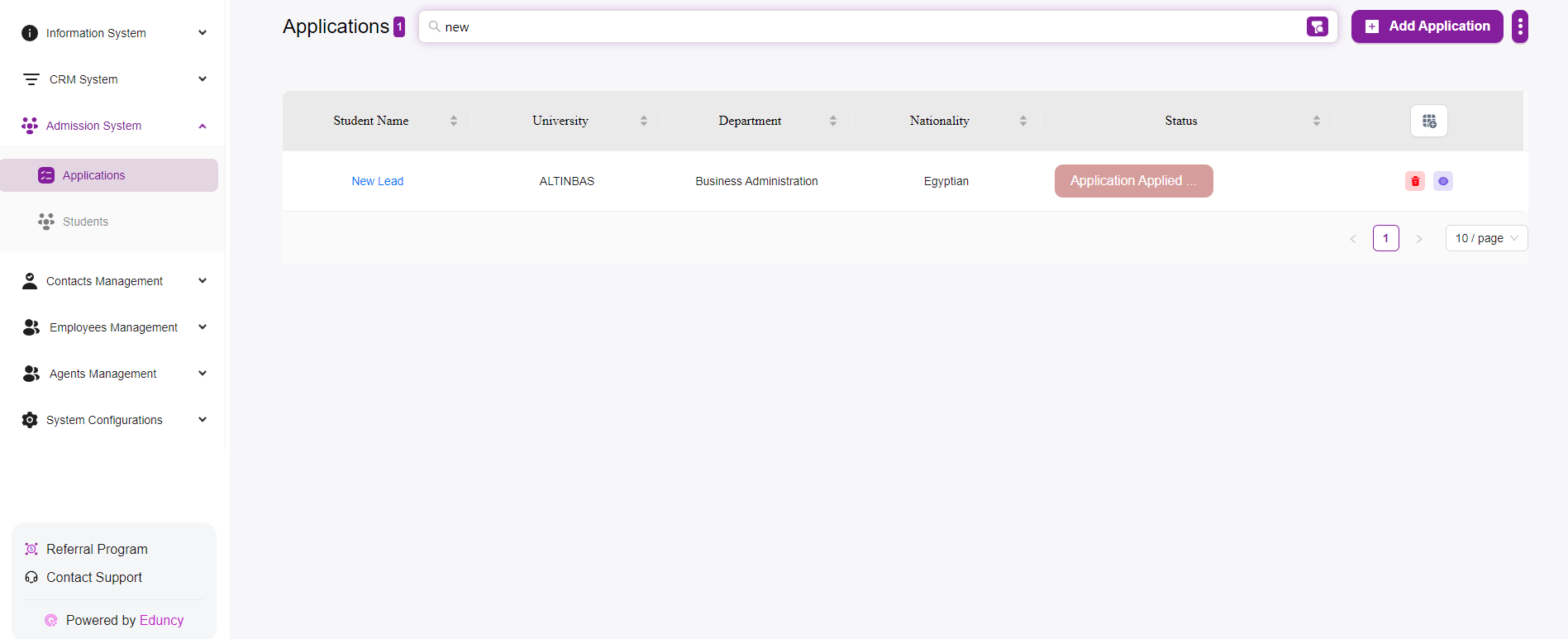
Layout and Navigation
Top Navigation Bar:
- The top bar includes a search field for quickly locating applications based on student names or other criteria.
- The “Add Application” button allows you to add a new application manually.
- For more information on how to add an Application click Here
Main Table
The main table on the Applications page displays a list of all student applications.
Each row in the table represents an individual application and includes the following columns:
-
Student Id:
Displays the unique identifier for each student. -
Student Name:
Displays the name of the student.
Clicking on the student name may provide more details about the student’s profile. -
University:
Displays the name of the university to which the student has applied. -
Faculty:
Displays the faculty or school within the university (e.g., Graduate School of Social Science). -
Department:
Displays the specific department (e.g., Business Administration, Arts and Design). -
Degree:
Displays the degree program (e.g., Master With Thesis). -
Language:
Displays the language of instruction for the program. -
Nationality:
Displays the nationality of the student. -
Status:
Displays the current status of the application (e.g., Ready To Apply).
Status buttons are color-coded for easy identification.- You can customize it as you like from the Table Configuration Button
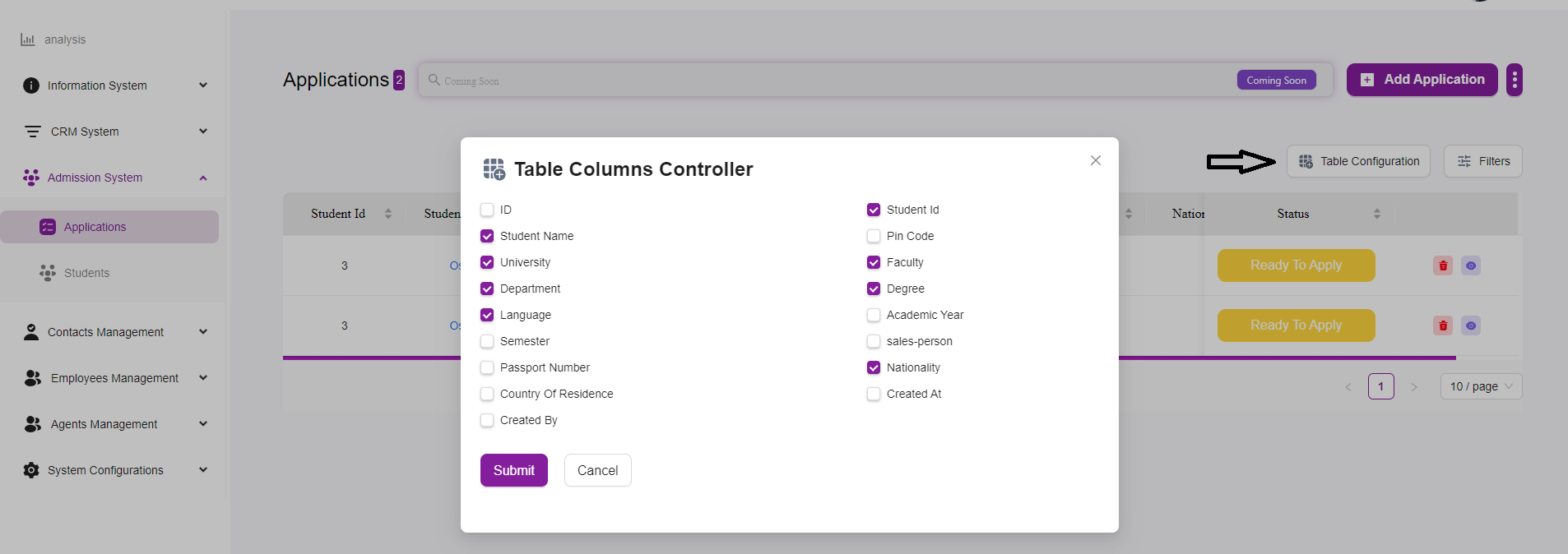
- You can customize it as you like from the Table Configuration Button
Action Buttons
For each application, there are action buttons on the right side of the table:
-
Delete (Trash Can Icon):
Allows you to delete the application. -
View (Eye Icon):
Allows you to view detailed information about the application.
Additional Features
-
Table Configuration:
A button that allows you to configure which columns are displayed in the table. -
Filters:
A button that allows you to filter the applications based on various criteria to find specific applications more easily. -
Pagination:
Located at the bottom of the table, this allows you to navigate through multiple pages of applications.
You can adjust the number of applications displayed per page.